





IOS 27 Introduces Compact Lock Screen Clock Option, Reversing the Trend of Dominant Time Displays

Apple’s latest mobile operating system, iOS 27, slated for a general release in September, is set to introduce a significant aesthetic shift for iPhone users by offering a compact mode for the Lock Screen clock. This new feature directly contrasts with the expanded clock display that became a hallmark of iOS 26, providing users with a more minimalist approach that prioritizes wallpaper visibility. Previously, iOS 26 allowed users to dramatically enlarge the Lock Screen clock, often to the point where it dominated the entire display. iOS 27, however, introduces an option to shrink the time to a size comparable to the date, tucking it discreetly into the top row of the Lock Screen.
This subtle yet impactful change allows for a Lock Screen experience where the user’s chosen wallpaper can truly shine. For those who select images for their aesthetic appeal and visual richness, the compact clock ensures that these backgrounds are no longer significantly obscured by the time. This marks the first time iOS has offered users such granular control over the prominence of the clock, enabling a more personalized and visually appealing Lock Screen presentation. The move comes as part of a broader suite of refinements in iOS 27, signaling Apple’s continued dedication to enhancing user customization and visual experience on its flagship devices.
The Evolution of the iPhone Lock Screen Clock
The journey of the iPhone Lock Screen clock’s design has been one of iterative refinement, reflecting Apple’s evolving design philosophy and user feedback. In earlier iterations of iOS, the clock was a standard, unobtrusive element, typically positioned at the top of the screen alongside the date. This design prioritized functionality and a clean aesthetic, allowing notifications and widgets to take center stage.
The significant alteration arrived with iOS 26, which introduced a dynamic and customizable clock. Users were granted the ability to enlarge the clock significantly, stretching it vertically down the iPhone’s display. This feature was part of a larger overhaul of the Lock Screen, which included the introduction of customizable widgets, new font styles, and color options, allowing for a highly personalized Lock Screen experience. The enlarged clock, while offering a bold statement, sometimes came at the expense of wallpaper visibility, leading to a trade-off between displaying the time prominently and showcasing the chosen background image.

The introduction of the compact clock option in iOS 27 can be seen as a direct response to user preferences and a desire for greater balance. It acknowledges that while some users appreciate a bold clock display, others prioritize the visual impact of their wallpapers. This duality in design choice caters to a wider spectrum of user aesthetics and functional needs. The ability to switch between these two distinct clock styles—the expansive display of iOS 26 and the minimalist approach of iOS 27—provides users with unprecedented flexibility in tailoring their iPhone’s Lock Screen to their individual tastes and the specific context of their chosen wallpaper.
Navigating the Compact Clock Functionality
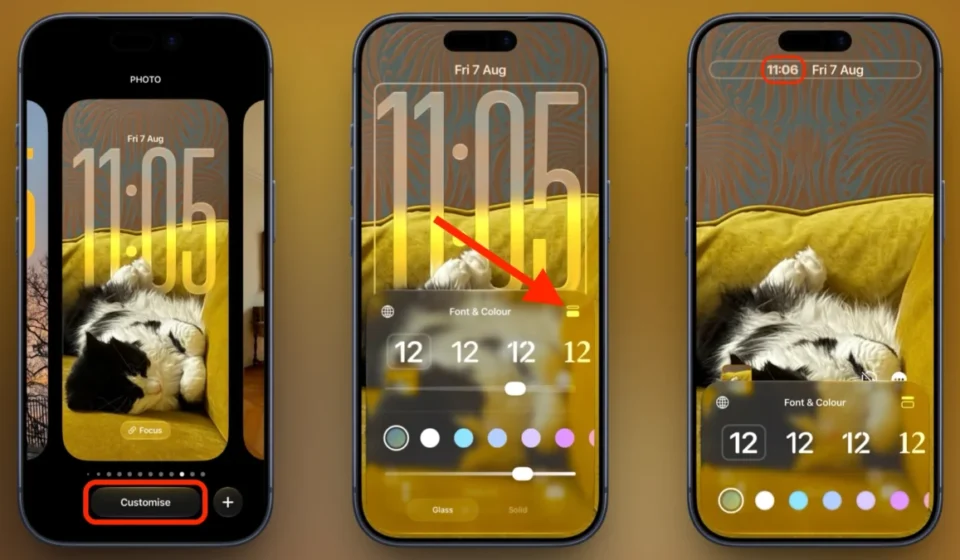
Implementing the new compact clock option in iOS 27 is a straightforward process, integrated seamlessly into the existing Lock Screen customization interface. Users can access this feature by following these steps:
- Accessing Lock Screen Customization: To begin, users need to navigate to their iPhone’s Lock Screen. This is typically achieved by waking the device and then long-pressing on the Lock Screen itself. This action will bring up the Lock Screen gallery, where users can select or edit existing Lock Screens.
- Selecting or Creating a Lock Screen: Users can either choose to customize an existing Lock Screen or create a new one. Once a Lock Screen is selected for editing, tapping the "Customize" button will open the editing interface.
- Locating the Clock Customization Panel: Within the editing interface, users will find various customization options. The clock settings are usually found at the top of the screen. Tapping on the clock area itself will bring up the Font & Color panel.
- Activating Compact Mode: In the Font & Color panel for the clock, users will now see a new option, often represented by an icon or a toggle, that enables the compact clock mode. Tapping this icon will immediately resize the clock, shrinking it to a smaller footprint and repositioning it to the top of the screen, adjacent to the date.
- Previewing and Saving Changes: The visual change to the clock is applied in real-time, allowing users to instantly see how the compact clock interacts with their wallpaper. Users can then proceed to save their customized Lock Screen.
To revert to the previous, larger clock display, users simply need to repeat the process. By returning to the Font & Color panel for the clock on that specific Lock Screen, they can tap the same compact mode icon again. This will restore the clock to its previous size and position. This ability to easily toggle between modes ensures that users can experiment with different looks and find the perfect balance for each of their personalized Lock Screens. The option to apply these changes on an individual Lock Screen basis means that users can have a compact clock on one wallpaper, perhaps one that is visually intricate or a cherished photograph, and a more prominent clock on another, potentially for a specific Focus mode where immediate time visibility is paramount.
Retaining Customization While Embracing Minimalism
A key aspect of the new compact clock feature in iOS 27 is its ability to preserve existing user customizations. When a user switches to the compact clock mode, their chosen font style, weight, and color for the time remain intact. This ensures a cohesive and personalized aesthetic, even with the reduced clock size. Users can continue to adjust these parameters within the Font & Color panel, further refining the appearance of the compact clock to match their preferences.
However, it is important to note a specific limitation introduced with the compact mode: the loss of access to the "Liquid Glass" slider. The Liquid Glass effect, a visual styling option that creates a dynamic, fluid appearance for the clock, is exclusive to the larger clock display. When the clock is compacted, this particular visual effect is deactivated. This trade-off suggests a design decision to prioritize a cleaner, more minimalist presentation in compact mode, where the intricate animations of Liquid Glass might detract from the emphasis on the wallpaper.

The application of these Lock Screen settings is granular, meaning the compact clock setting is tied to individual Lock Screens. This provides a high degree of flexibility. For instance, a user might configure one Lock Screen for their morning routine with a vibrant, detailed photograph and opt for the compact clock to fully appreciate the image. Conversely, another Lock Screen designated for a work-related Focus mode might feature a simpler background and retain the larger clock for quick time checks without needing to unlock the device. This per-Lock Screen customization capability underscores Apple’s commitment to offering tailored user experiences across different contexts and personal preferences. The public beta of iOS 27 has been available, with widespread adoption anticipated following the official launch in September.
Implications and Broader Impact
The introduction of the compact clock option in iOS 27 signifies more than just a minor aesthetic tweak; it represents a thoughtful evolution in Apple’s approach to user interface design and customization. By offering a choice between a dominant clock display and a minimalist one, Apple acknowledges the diverse needs and preferences of its user base. This move is likely to be well-received by users who have prioritized wallpaper aesthetics and sought greater visual clarity on their Lock Screens.
From a design perspective, the compact clock aligns with a broader trend towards minimalism and user-centric design. It allows the iPhone to function not only as a communication device but also as a personal canvas, where the user’s chosen imagery can take center stage. This focus on visual presentation can enhance the emotional connection users have with their devices, transforming the Lock Screen from a purely functional interface into a reflection of personal style.
Furthermore, the flexibility offered by per-Lock Screen settings, including the compact clock option, empowers users to create distinct visual identities for different scenarios. This can be particularly beneficial when integrated with Focus modes. For example, a user could have a Lock Screen optimized for productivity with a clean, minimalist design and a large clock for immediate time awareness, while another Lock Screen for leisure might feature a personal photograph with a compact clock to maximize the visual impact of the image. This level of personalization contributes to a more intuitive and enjoyable user experience, allowing the iPhone to adapt more seamlessly to the user’s daily life and activities.
The timing of this feature’s release, alongside other iOS 27 enhancements, such as the re-tooled Siri and new Apple Intelligence features, suggests a comprehensive effort to refine the iPhone’s user experience. While the headline-grabbing AI advancements may dominate the conversation, these more subtle interface refinements play a crucial role in shaping the overall user perception and satisfaction with the operating system. The success of the compact clock feature will likely depend on its seamless integration and the continued appreciation for user choice in design, reinforcing Apple’s strategy of iterative improvement and user-focused innovation. The anticipation for iOS 27’s general availability in September suggests a strong interest from the user community in these forthcoming refinements.