





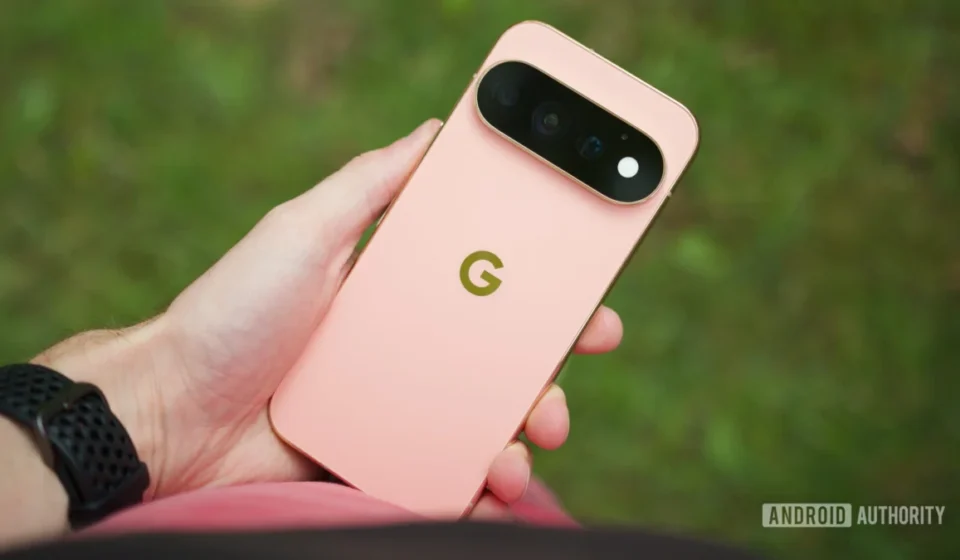
Optimizing Your Google Pixel 11: Essential Settings and Features for Enhanced Experience

The Google Pixel 11 series has officially launched, introducing a suite of hardware and software innovations designed to elevate the user experience. However, consistent with previous Pixel generations, many of the most impactful features and settings are not enabled by default, requiring users to manually configure them for optimal performance and utility. This year, the Pixel 11 series brings a particular emphasis on advanced photography tools, enhanced creator capabilities, and critical safety features, making it more imperative than ever for new owners to explore and customize their devices from the outset. Unlocking the full potential of these new smartphones involves delving into the settings menu to activate dormant functionalities that promise to streamline daily interactions, improve creative output, and bolster personal safety.
Google’s Approach to User Customization and Feature Deployment
Google’s philosophy for the Pixel lineup often centers around delivering a pure Android experience augmented by intelligent, AI-driven features. While this approach leads to a clean interface out of the box, it also means that many sophisticated functionalities, particularly those that involve personalization or power consumption, are left to the user to activate. This design choice provides flexibility, allowing users to tailor their device precisely to their needs rather than being overwhelmed by pre-enabled options. For the Pixel 11, this means a significant number of enhancements across photography, connectivity, and personal safety are available but necessitate initial setup. Understanding these options is key to transforming a capable smartphone into a truly personalized and indispensable tool.
Revolutionizing Photography with Camera Looks
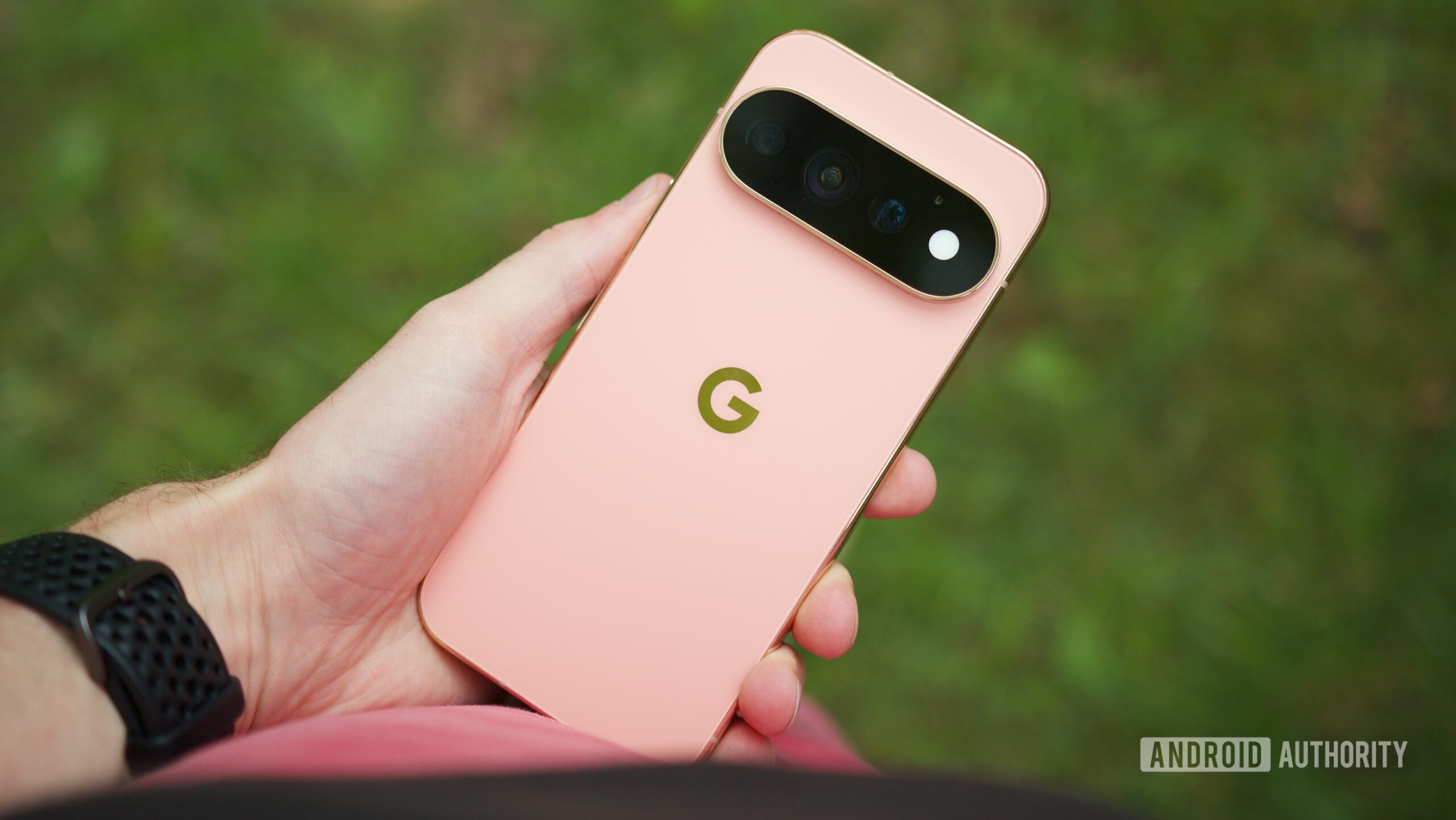
Pixel phones have consistently been lauded for their exceptional computational photography, and the Pixel 11 series takes this a step further with the introduction of "Camera Looks." This innovative feature moves beyond traditional post-capture filters, allowing users to select the overall color and tone of their photos before the shutter button is pressed. Historically, Pixel’s camera output was characterized by a specific, often vibrant, and high-contrast aesthetic. Camera Looks empowers users with unprecedented creative control, enabling them to define their photographic style directly within the camera app.
The "Default Look" itself offers four distinct levels of HDR (High Dynamic Range) processing, giving photographers granular control over shadow detail, highlight recovery, and overall dynamic range. Beyond this, users can swipe through a variety of stylized "Looks" that dramatically alter colors, contrast, and saturation, catering to different moods and subjects. For instance, a user might choose a warmer, more desaturated look for a nostalgic portrait, or a punchier, high-contrast look for a striking landscape. This pre-capture customization is a significant evolution, as it integrates stylistic choices into the image processing pipeline from the very beginning, potentially leading to more cohesive and artistically consistent results than applying filters later. To activate and experiment with these styles, users must navigate the camera interface to explore the available "Looks" and select their preference, moving beyond the factory-set "standard" style. This marks a departure from a purely algorithmic interpretation of a scene to a more user-directed artistic vision, aligning with industry trends that prioritize user expression in mobile photography.
Empowering Content Creation with Creator Suite Tools
In response to the burgeoning ecosystem of social media content creation, Google has integrated a robust "Creator Suite" directly into the Pixel 11’s camera. This suite addresses specific challenges faced by video creators, offering tools that are notably absent from many competing devices, including some premium smartphones. The most prominent additions are a built-in teleprompter and social media grid lines.
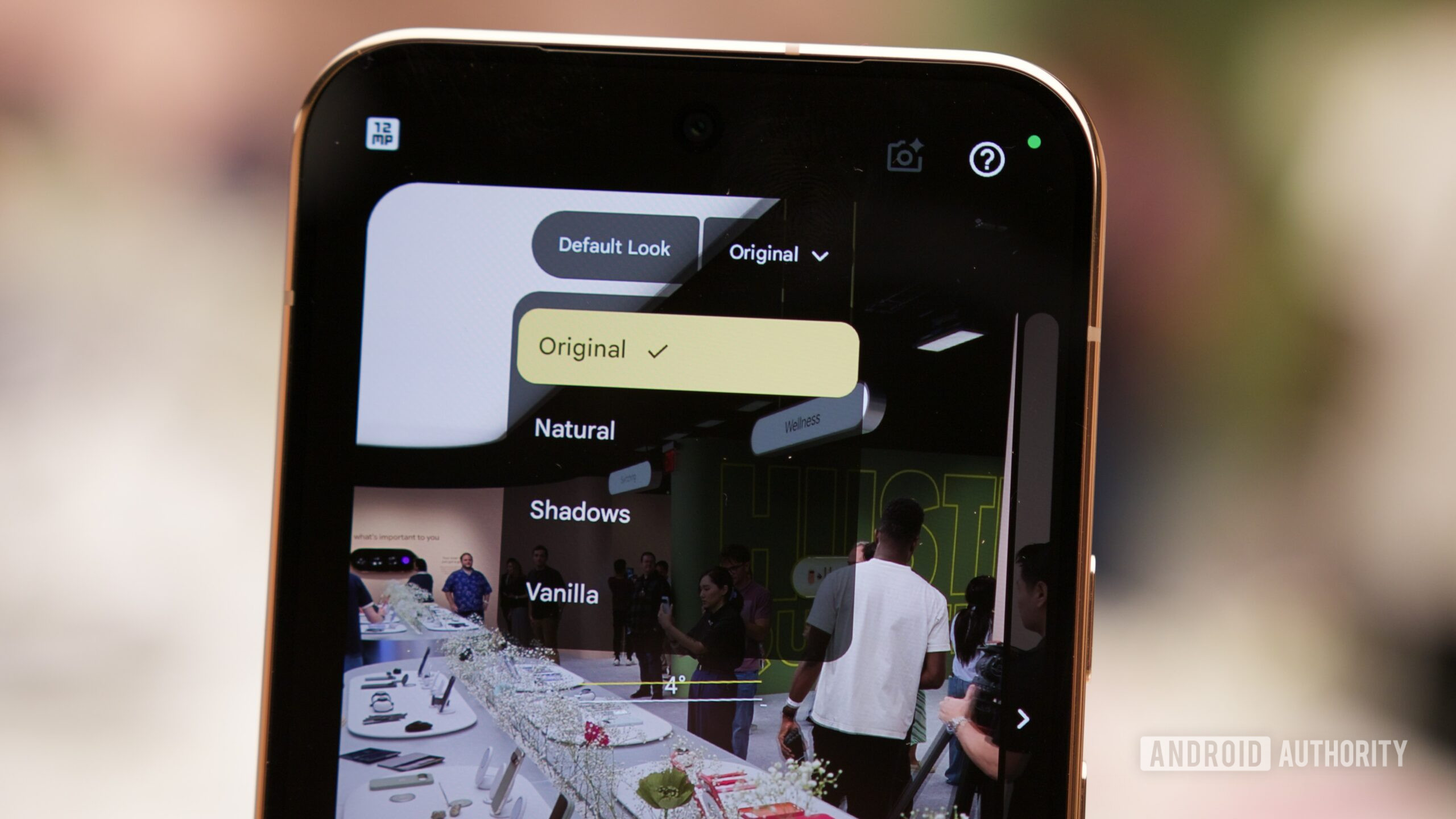
The teleprompter allows creators to read scripts directly from their screen while recording, ensuring smooth delivery and eliminating the need for external devices or memorization. This is invaluable for producing professional-quality vlogs, tutorials, or marketing content. Complementing this, the social media grid lines provide a visual overlay that indicates where common user interface elements (such as usernames, captions, and "Like" buttons) will appear on popular platforms like Instagram, TikTok, and YouTube Shorts. This foresight enables creators to frame their shots meticulously, preventing crucial visual information or subjects from being obscured by UI overlays once the video is uploaded. This feature underscores Google’s recognition of the professionalization of mobile content creation and aims to position the Pixel 11 as a preferred device for digital artists and influencers. These powerful tools are not active by default and require manual activation within the camera settings, allowing creators to selectively engage them as needed. This reflects Google’s strategic move to cater to a growing demographic of smartphone users who rely on their devices for more than casual photography.
Optimizing Power Management with Extreme Charging
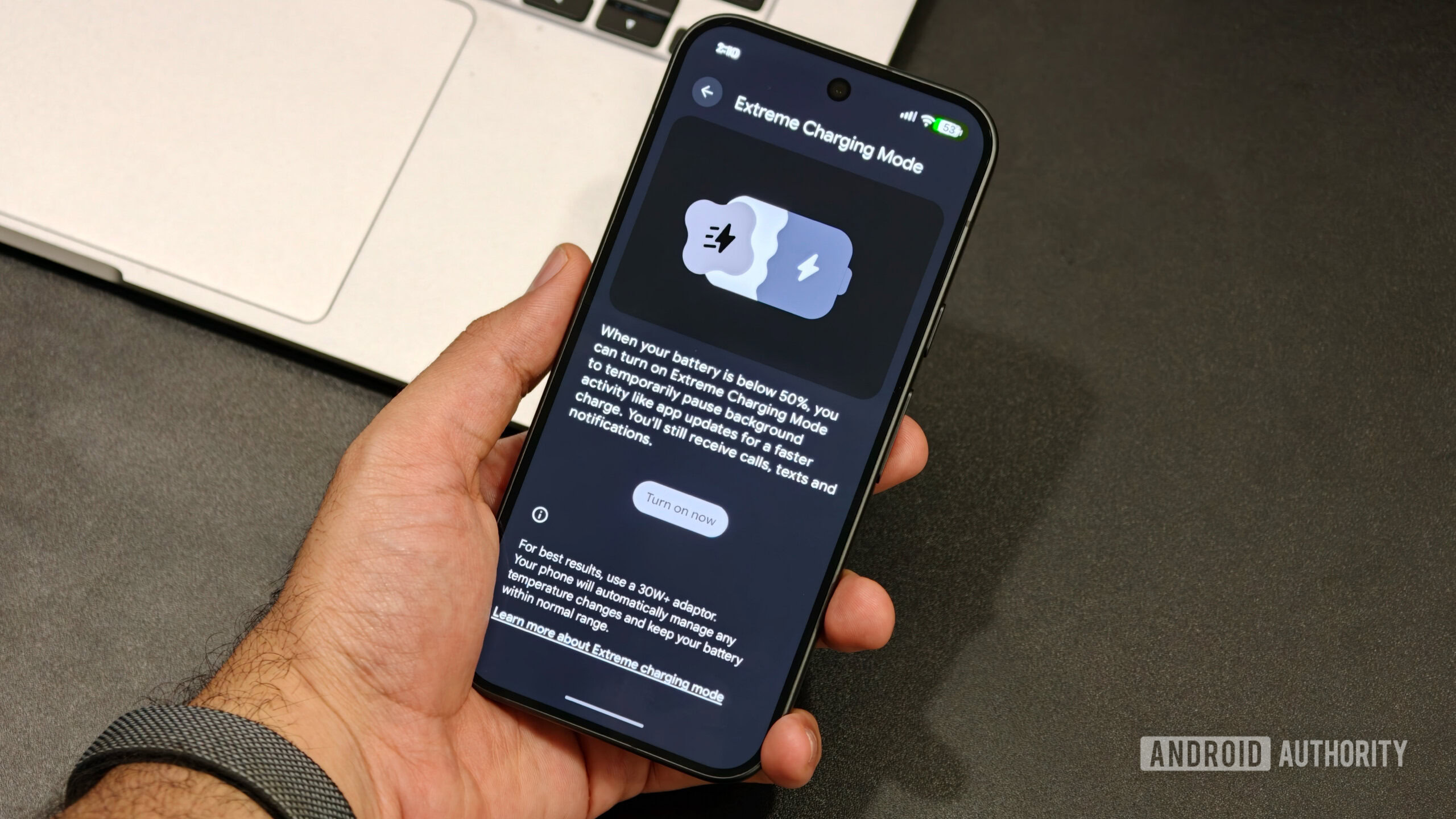
While the Pixel 11 series may not feature dramatic increases in battery capacity, Google has introduced a practical charging innovation called "Extreme Charging." This feature addresses a common pain point for users: the need for rapid power replenishment in time-sensitive situations. Similar to proprietary fast-charging technologies seen in brands like OnePlus, Oppo, and Vivo, Extreme Charging allows the Pixel 11 to temporarily prioritize faster charging speeds when immediate power is required.
However, its implementation comes with specific conditions. Extreme Charging is only active when the battery level is below 50%, ensuring that the accelerated charging primarily benefits users who are running critically low on power. Furthermore, it is not an always-on feature; users must manually enable it each time they wish to utilize the faster charging speed. This manual activation likely serves to protect long-term battery health, as constant extreme charging could potentially accelerate battery degradation. To engage this feature, users must connect their Pixel to a charger when the battery is under 50% and then navigate to Settings > Battery & charging > Extreme Charging and tap "Turn on now." This strategic approach balances the convenience of rapid charging with responsible battery management, offering users a high-speed option for emergencies without compromising the device’s longevity under normal use.
Essential Battery Monitoring: Displaying Exact Percentage
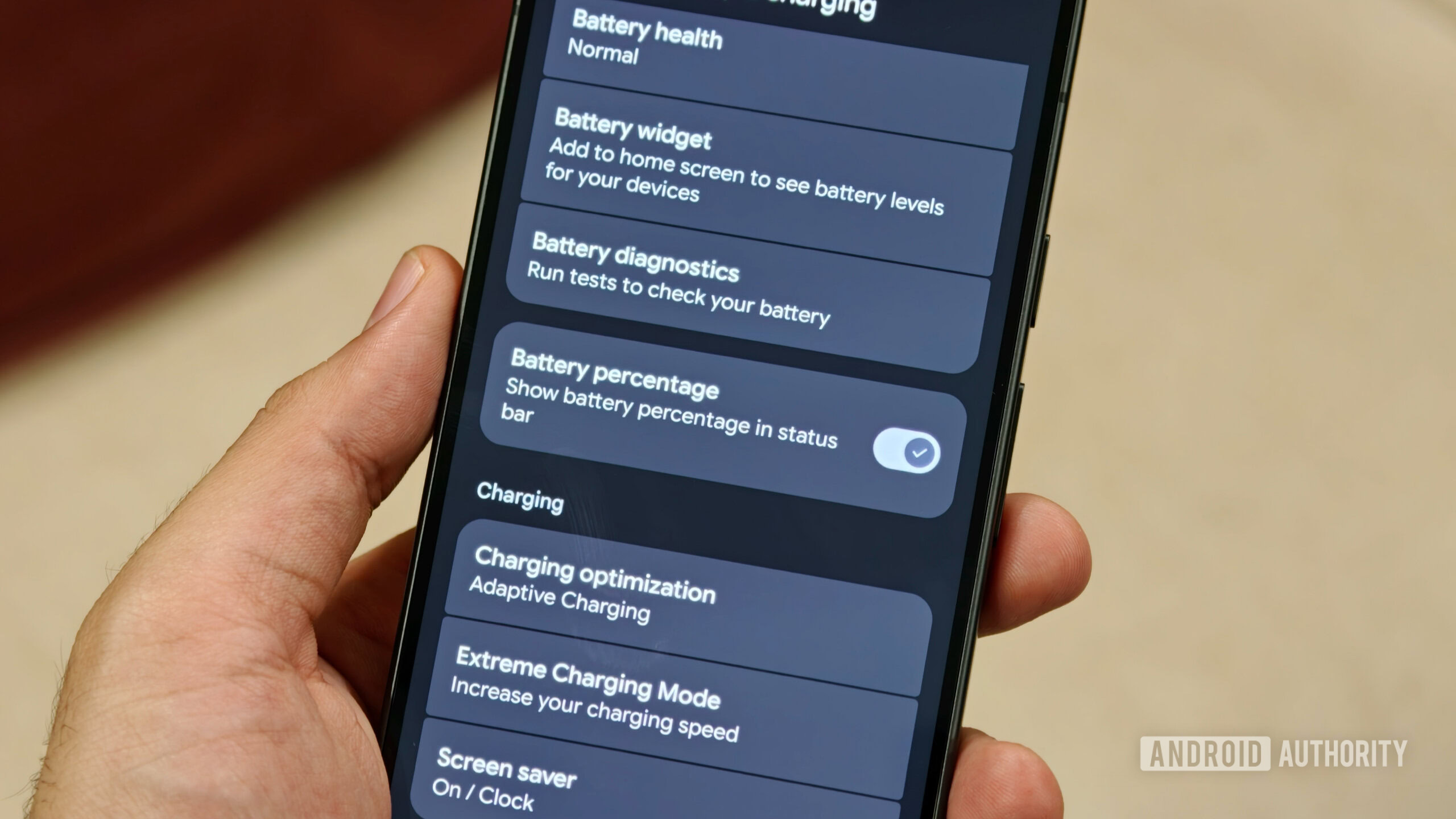
A persistent quirk in Pixel phone default settings has been the omission of the exact battery percentage in the status bar. Instead, users are presented with a graphical icon, which, while visually indicative, lacks the precision often desired for effective power management. For many users, knowing the precise remaining battery percentage is crucial for planning usage, especially during long days or when away from charging points. This seemingly minor detail significantly impacts user convenience and helps in avoiding unexpected power depletion. Fortunately, enabling this feature is straightforward and can be done within the battery settings. By navigating to Settings > Battery & charging and toggling on the "Battery Percentage" option, users gain an immediate, clear numerical indicator of their device’s power status, transforming a vague icon into an actionable piece of information. This simple adjustment greatly enhances the user’s ability to monitor and manage their device’s energy consumption.
Personalized Alerts with HiLight for Favorite Contacts
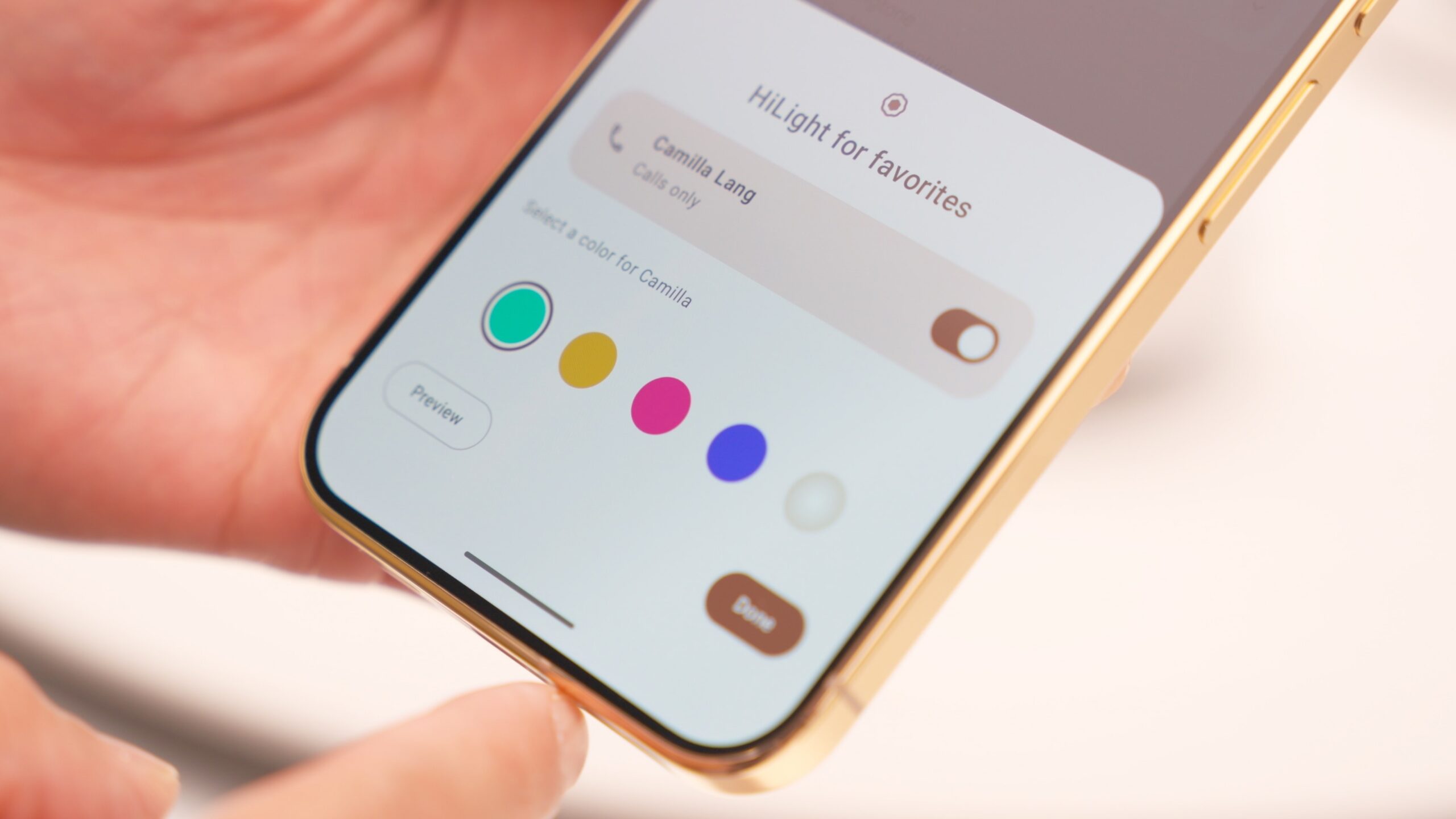
One of the more distinctive and innovative additions to the Pixel 11 Pro models is "HiLight," a multicolor LED subtly integrated into the phone’s rear. This feature offers a novel way for the device to communicate with its user, even when the phone is face down. HiLight serves a dual purpose: it can activate to provide visual feedback when interacting with Google’s Gemini AI assistant, and more intriguingly, it can display different colors based on the incoming caller. This brings a personalized, visual dimension to notifications, reminiscent of older notification LEDs but with a modern, sophisticated twist.
The true utility of HiLight lies in its customization. While the LED is present, users must actively assign specific colors to their favorite contacts. This allows for an instant, glanceable identification of who is calling without needing to pick up or unlock the phone. Imagine a distinct blue for a family member, or a green for a close friend – the possibilities for personalization enhance both convenience and a sense of connection. The caveat is that HiLight functionality for calls is restricted to contacts marked as "favorites." To set this up, users first need to mark a contact as a favorite by tapping the star icon on their contact page. Once favorited, the HiLight customization option becomes available, allowing for color assignment. This feature exemplifies Google’s ongoing exploration of new interaction paradigms and discreet communication methods, adding a layer of personal touch to device alerts.
Ensuring Seamless Connectivity with Adaptive Connectivity
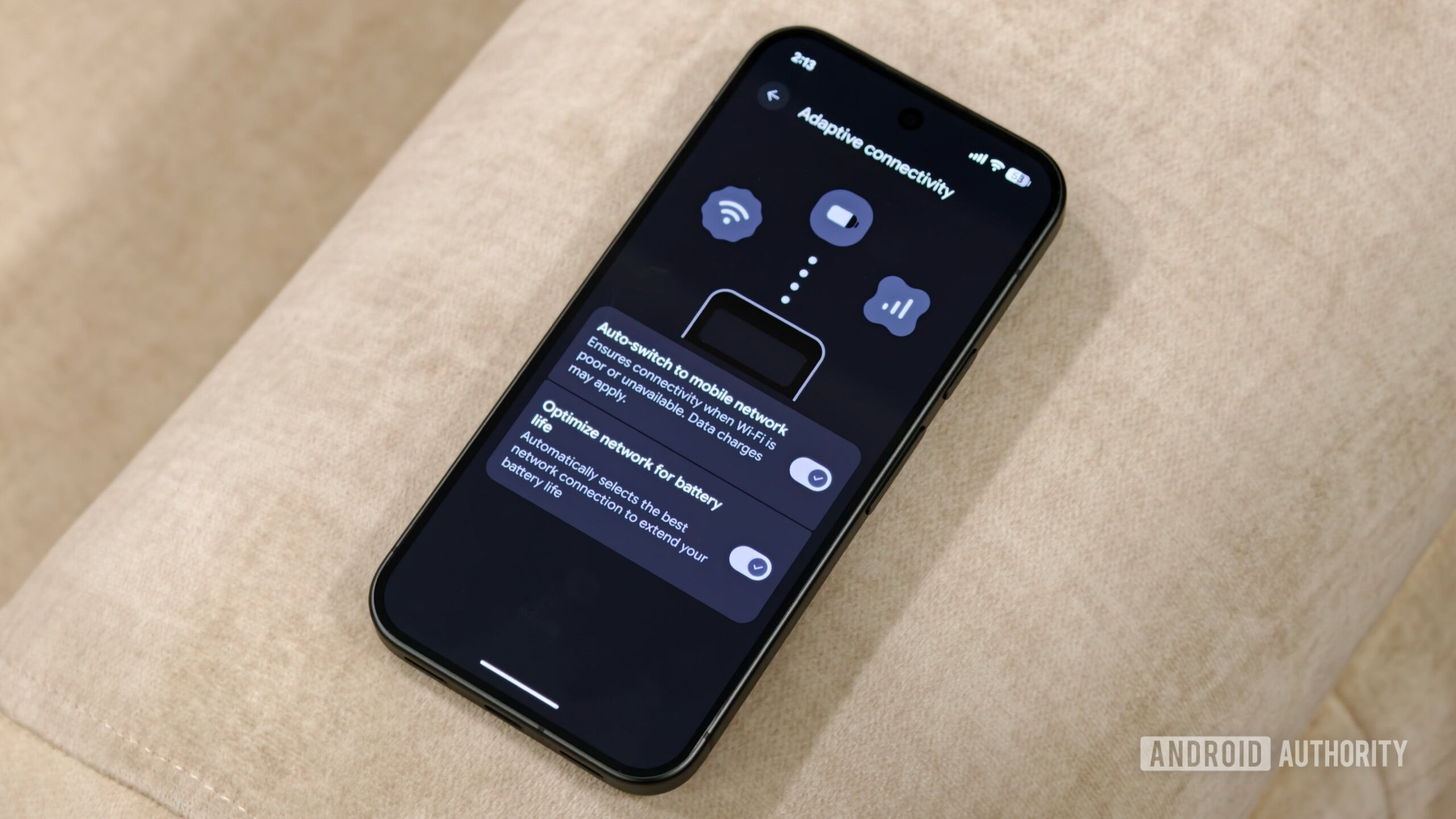
The Pixel 11 series marks a notable shift in hardware with Google’s adoption of a MediaTek modem, a change that promises improvements in cellular connectivity. Complementing this hardware evolution is a crucial software setting: "Adaptive Connectivity." This feature is designed to ensure the most reliable and efficient internet connection possible, particularly in environments with fluctuating network quality.
When enabled, Adaptive Connectivity intelligently monitors the strength and performance of the Wi-Fi network. If the Wi-Fi connection becomes weak or unstable—a common occurrence when moving around a large building or an area with patchy coverage—the Pixel 11 can automatically and seamlessly switch to cellular data. This prevents interruptions in streaming, browsing, or online communication that would otherwise occur if the device remained stubbornly connected to a struggling Wi-Fi network. The benefit is a smoother, more consistent online experience, minimizing frustration caused by slow loading times or dropped connections. To leverage this intelligent network management, users should navigate to Settings > Network & internet > Adaptive Connectivity and enable the "Auto switch to mobile network" toggle. This proactive approach to connectivity ensures that the Pixel 11 is always striving for the best available internet access, enhancing overall device responsiveness and user satisfaction.
Never Miss an Important Alert: Notification History and AI Summaries
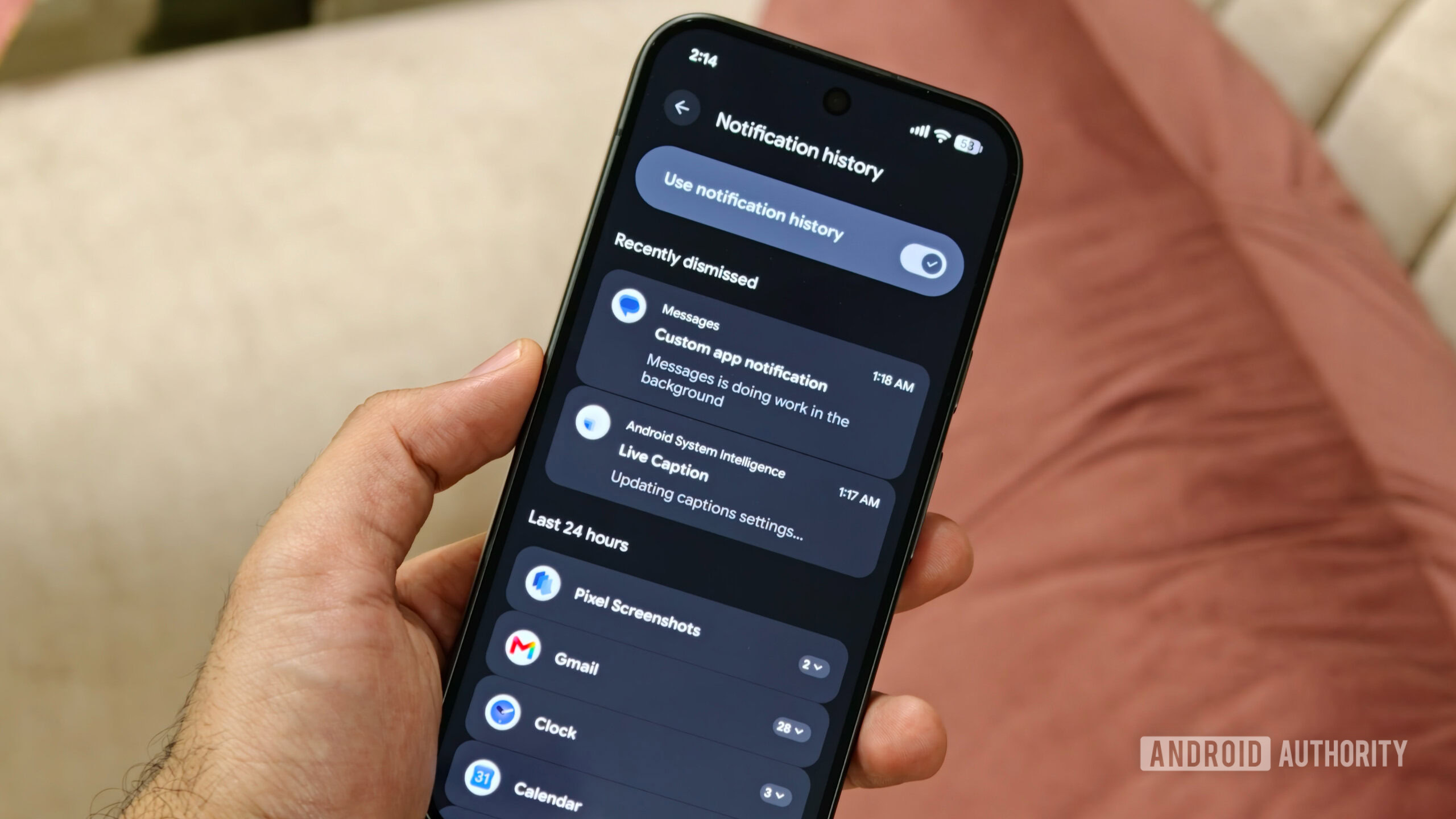
In an era of constant digital communication, managing notifications has become a critical aspect of smartphone usage. It’s a common scenario: a flurry of alerts arrives, they are hastily swiped away, and then the realization hits that an important message or update was among them. Android has a built-in solution for this: "Notification History." This feature acts as a comprehensive log, recording all recently received notifications, including those that have been dismissed. This digital safety net ensures that users can always review past alerts, preventing the accidental loss of crucial information. Despite its undeniable utility, Notification History is inexplicably disabled by default on Pixel phones.
To activate this indispensable feature, users must delve into their notification settings. Once enabled, a simple swipe down from the status bar and access to the notification history will reveal a chronological list of all recent alerts, complete with their originating applications.
Furthermore, the Pixel 11 series enhances notification management with AI-powered notification summaries. Leveraging the on-device Gemini model, this feature can condense longer, more verbose notifications into concise, easy-to-read summaries. This is particularly useful for group chats, email threads, or news alerts that might contain a lot of text, allowing users to quickly grasp the essence of an alert without needing to fully open the application. These AI summaries streamline the notification experience, making it easier to stay informed without being overwhelmed. Both Notification History and AI summaries can be configured within the Notifications settings, providing a robust toolkit for managing digital distractions and ensuring no vital information slips through the cracks.
Transforming the Lock Screen with Widgets and Shortcuts
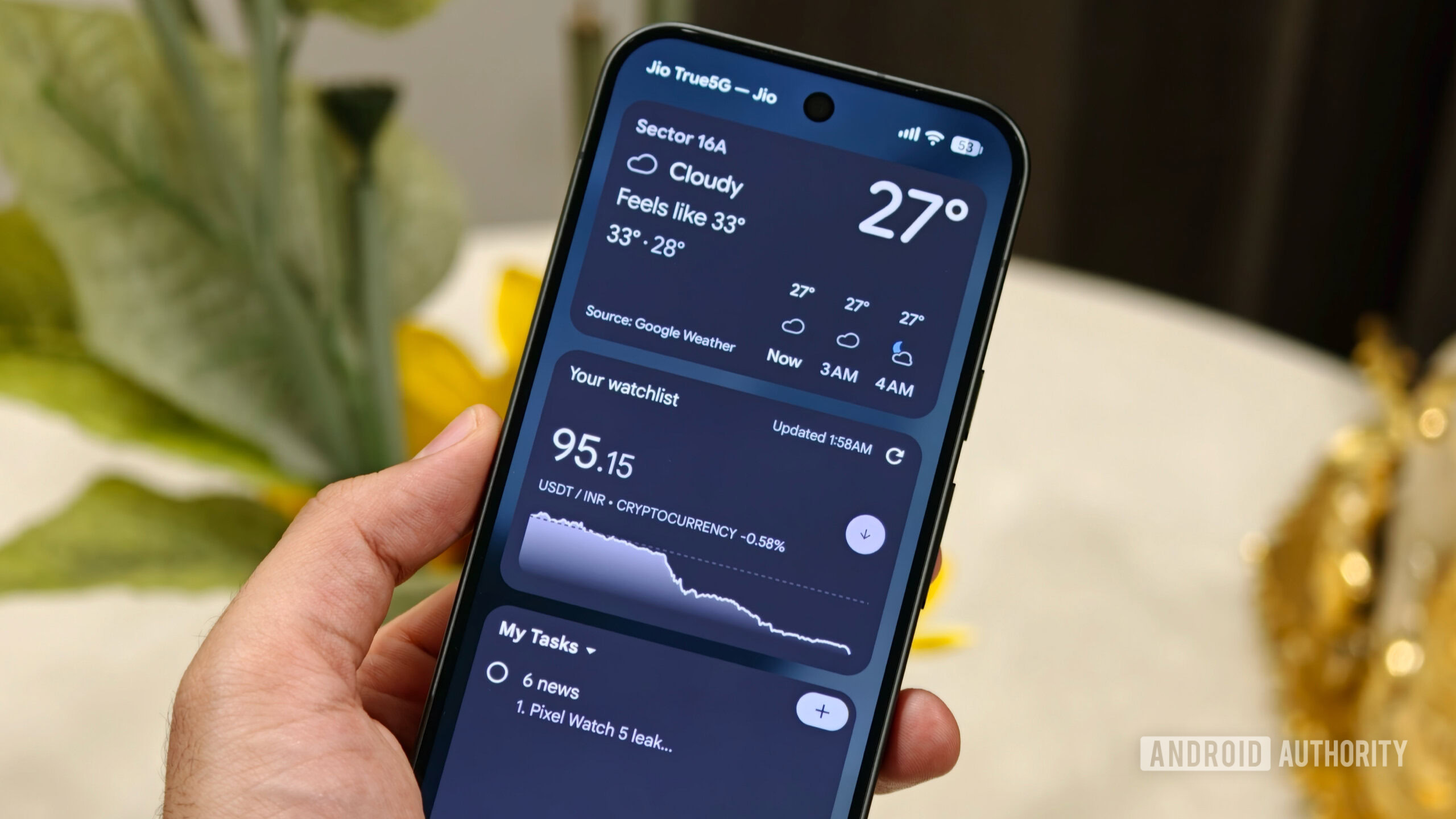
The Android ecosystem has a rich history with widgets, and with Android 16, Google reintroduced lock screen widgets to Pixel phones, offering a powerful avenue for quick information access. However, even on the new Pixel 11, these widgets remain disabled by default, requiring users to actively enable and configure them. This feature significantly enhances the utility of the lock screen, transforming it from a mere gateway to the device into a customizable information hub.
To enable and set up lock screen widgets, users need to access the customization options for their lock screen. Once activated, users can swipe right on the lock screen to reveal a dedicated panel for widgets. Here, they can add a variety of widgets from compatible applications, displaying information such as weather updates, stock prices, upcoming calendar events, or tasks from Google Tasks, all without needing to unlock the device. This provides an immediate, glanceable overview of essential data, saving time and improving efficiency. For instance, a user can quickly check the day’s forecast or their most pressing to-do items with a simple swipe, streamlining their daily routine.
In conjunction with lock screen widgets, configuring lock screen shortcuts is equally beneficial. Within the lock screen settings, users can customize the app shortcuts that appear on the left and right sides of the bottom bar. This allows for instant access to frequently used applications directly from the lock screen, such as the camera, flashlight, or a messaging app. Personalizing these shortcuts, alongside enabling widgets, fundamentally alters the lock screen experience, making it a more dynamic and functional component of the Pixel 11.
The Unsung Hero: Now Playing’s Dedicated App
Among the Pixel’s most beloved and often underrated features is "Now Playing." Introduced several generations ago, this innovative feature harnesses the power of on-device machine learning to automatically identify music playing in the user’s surroundings. Without requiring an active internet connection or manual activation, Now Playing listens discreetly and displays the song title and artist directly on the lock screen. This eliminates the frantic scramble to open a music identification app when a catchy tune plays in a café or store.
Beyond real-time identification, Now Playing also maintains a comprehensive history of all recognized songs. This is incredibly useful for users who might hear a song they like but forget to look it up immediately. The history acts as a personal music diary, making it easy to revisit and discover new tracks. For the Pixel 11, Google has made Now Playing even more accessible and robust by giving it a dedicated application. This integration streamlines its management and enhances its visibility. To ensure this feature is fully operational and configured to user preferences, it’s advisable to check its settings, which now reside within its dedicated app, ensuring continuous, seamless music identification. This feature continues to highlight Google’s strength in ambient computing and intelligent, context-aware user experiences.
Prioritizing Safety: Configuring Emergency Features
While users hope never to need them, the emergency features integrated into the Pixel 11 are arguably the most critical to configure immediately after setup. Google has invested heavily in personal safety functionalities, most notably "Car Crash Detection." This life-saving feature leverages the phone’s accelerometers, microphones, and location services to detect if the user has been involved in a severe car accident.
Upon detection, the Pixel 11 will vibrate, sound a loud alarm, and display an on-screen prompt asking if assistance is needed. If the user confirms they require help, or if there is no response within a set timeframe, the phone can automatically contact emergency services. Crucially, it can also share the user’s precise location with pre-designated emergency contacts, providing vital information to first responders and loved ones. This automated response can be instrumental in situations where the user is incapacitated or unable to call for help themselves.
To enable Car Crash Detection, users must navigate to Settings > Safety & emergency > Car Crash Detection and activate the corresponding toggle. Additionally, users have the option to enable "Emergency Sharing," which automatically disseminates their location to emergency contacts in the event of a detected incident. Setting up these features is a proactive measure that offers a significant layer of personal security. It is a configuration that, once enabled, can be largely forgotten about, yet holds the potential to make a profound difference in a critical situation, underscoring Google’s commitment to user well-being.
Conclusion: Unlocking the Pixel 11’s Full Potential
The Google Pixel 11 series represents a significant leap forward in smartphone technology, blending cutting-edge hardware with sophisticated AI-driven software. However, as demonstrated by the array of features discussed, realizing the device’s full potential often hinges on the user’s willingness to engage with its deeper settings. From empowering creative expression in photography and video, to ensuring uninterrupted connectivity, optimizing battery usage, and providing critical safety nets, these configurable options are not mere afterthoughts but integral components of the Pixel 11 experience.
Google’s design philosophy, which emphasizes user choice and a clean default interface, places the onus on the individual to tailor their device. By taking a few moments to activate and personalize these essential settings, Pixel 11 owners can unlock a more intuitive, efficient, and secure smartphone experience. This initial investment in customization transforms the device from a powerful piece of technology into a truly personalized and indispensable assistant, ready to meet the diverse demands of modern digital life. Exploring these options is highly recommended for all new Pixel 11 users to maximize their device’s capabilities and truly make it their own.