



Monster Hunter Outlanders Best Settings Guide: Optimizing Your Mobile Hunt

The eagerly anticipated arrival of Monster Hunter Outlanders on mobile platforms marks a significant moment for the venerable franchise, bringing its signature blend of thrilling monster hunts, intricate weapon mechanics, and compelling character progression to a vast new audience. While formidable weapons and honed hunter skills are undeniably crucial for success in the perilous world of Monster Hunter, the underlying foundation for executing these elements effectively lies in the game’s control responsiveness and overall performance. In the demanding arena of mobile gaming, where split-second decisions and precise movements dictate the outcome of intense encounters, an optimized settings configuration is not merely a convenience but a strategic imperative. This comprehensive guide delves into the nuances of Monster Hunter Outlanders’ extensive customization options, providing a framework for players to tailor their experience for maximum efficiency, comfort, and immersion.
The Evolution of Monster Hunter on Mobile: A Contextual Overview
The Monster Hunter franchise, renowned globally for its deep gameplay loops and challenging combat, has a rich history across various gaming platforms, from its console origins to handheld iterations. The transition to mobile with Outlanders represents a deliberate effort by developers Capcom and Level Infinite to adapt the core Monster Hunter experience for touch interfaces while retaining its characteristic depth. This adaptation, however, comes with inherent challenges, primarily concerning control fidelity, graphical performance across diverse hardware, and user interface ergonomics on smaller screens. The inclusion of robust customization features in Monster Hunter Outlanders is a direct response to these challenges, acknowledging the varied preferences and technical specifications of the mobile gaming community. It signifies a commitment to accessibility for newcomers while offering the granular control sought by veteran hunters accustomed to console-grade precision. The game, initially soft-launched or anticipated around late 2026 as suggested by internal asset timestamps, has been designed from the ground up to empower players with the tools to fine-tune their gameplay, recognizing that optimal performance is deeply personal and hardware-dependent.
Diving into Customization: A Comprehensive Overview

Accessing the game’s settings menu is the first step toward unlocking a personalized hunting experience. Typically, players can navigate to the settings through the main menu or during gameplay via a dedicated icon, often represented by a gear or cogwheel. Upon entry, the settings interface categorizes various adjustable parameters under headings such as Mode, Controls, Graphics, Camera, Features, Audio, and Language. For the purpose of enhancing gameplay and combat effectiveness, this guide will primarily focus on the categories that directly influence player interaction, visual fidelity, and critical combat feedback.
Game Mode: Tailoring the Core Experience
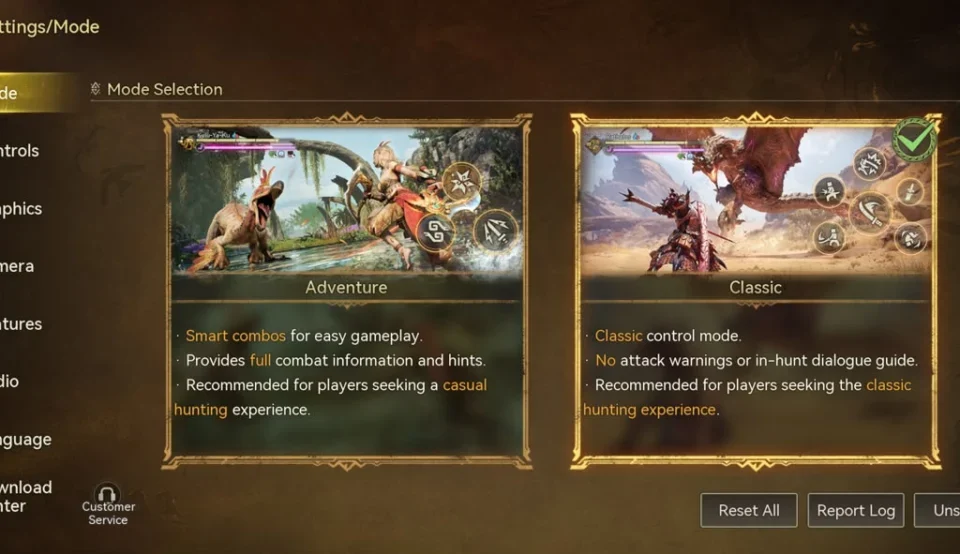
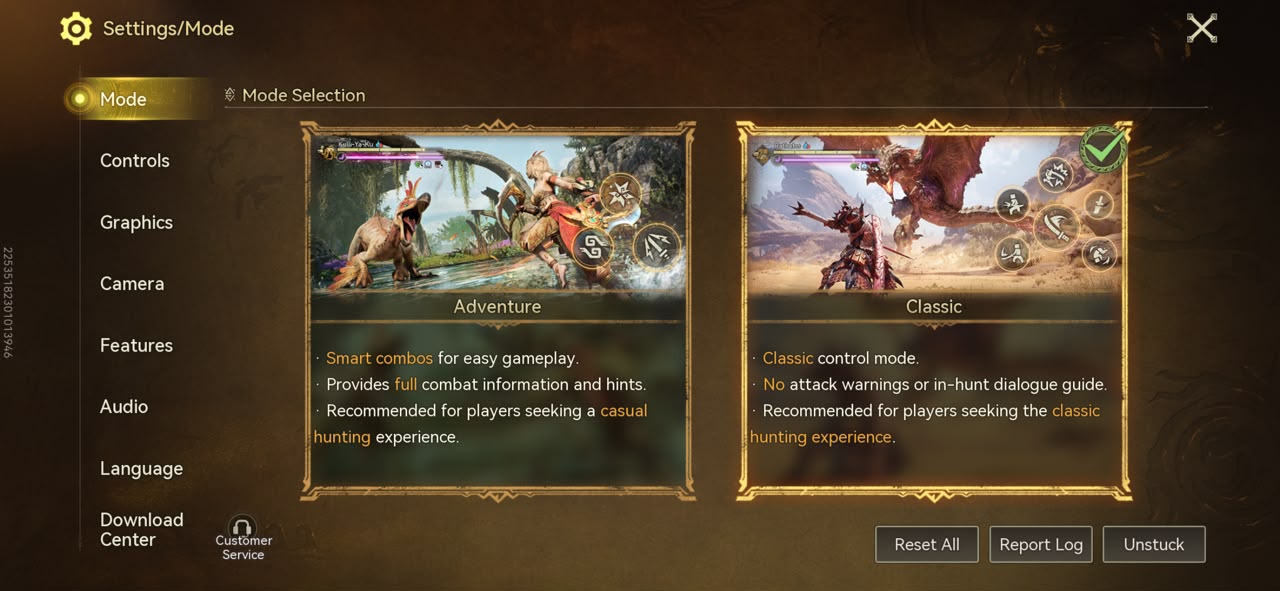
One of the foundational choices players encounter early in their Monster Hunter Outlanders journey is the selection between Adventure Mode and Classic Mode. These two control schemes offer distinct approaches to combat and interaction, catering to different player profiles and skill levels. Understanding their design philosophy is key to making an informed decision.
- Adventure Mode: The Gateway
Adventure Mode is designed with accessibility in mind, particularly for players new to the Monster Hunter franchise or those less accustomed to complex mobile action games. It streamlines controls, often automating certain actions or simplifying input sequences, thereby reducing the initial learning curve. This mode allows beginners to grasp the fundamental mechanics of hunting, monster behavior, and weapon combos without being overwhelmed by intricate manual inputs. It fosters a more forgiving environment, encouraging exploration and experimentation. For casual players or those prioritizing a less demanding experience, Adventure Mode is the recommended starting point, providing a solid foundation before potentially transitioning to a more manual control scheme. - Classic Mode: For the Veteran Hunter
Classic Mode, conversely, offers a more hands-on and granular control experience, closely mirroring the traditional Monster Hunter gameplay found on consoles. This mode provides players with direct command over a wider array of actions, demanding precise timing, deliberate input, and a deeper understanding of weapon move sets. It appeals to Monster Hunter veterans seeking a faithful adaptation of their preferred playstyle and mobile gamers who thrive on high-skill ceiling mechanics. While Classic Mode presents a steeper learning curve, it ultimately unlocks the full tactical depth and expressive potential of the game’s combat system. For those aiming for competitive play or seeking to master every nuance of their chosen weapon, Classic Mode, coupled with extensive customization, is the definitive choice.
Precision and Responsiveness: Mastering Controls
The control settings are paramount in an action-heavy title like Monster Hunter Outlanders, directly influencing a player’s ability to engage, evade, and execute complex maneuvers against formidable beasts. A responsive and intuitive control setup can significantly reduce input lag and improve overall combat fluidity.
-
Fine-Tuning Combat Mechanics
- Basic (Hunt) Mode: As discussed, Adventure for beginners, Classic for experienced players.
- Adventure: Roll Button: On. The roll mechanic is critical for evasion and repositioning. Having a dedicated button ensures immediate access to this life-saving maneuver.
- Adventure: Sheathe Button: On. Quickly sheathing your weapon allows for faster movement, item usage, and environmental interaction, crucial for tactical retreats or pursuit.
- Auto-Sheath: On (Classic only). This quality-of-life feature automatically sheathes your weapon after a period of inactivity or specific actions, streamlining movement without manual input, which is particularly beneficial in Classic Mode where manual actions are more prevalent.
- Skill Wheel Controls: Swipe. A swipe-based input for skill selection can often be faster and more fluid than multiple taps, especially during intense combat scenarios where quick access to abilities is vital.
- Joystick Modes for Charging and Direction Change: Hybrid Mode. This mode offers a balanced approach, allowing for both precise directional movement and intuitive control over charged attacks, which often require holding and releasing input. It strikes an optimal balance between mobility and offensive capability.
- Aim Sensitivity: Personal Preference (e.g., 60). This setting is highly subjective, depending on screen size, finger dexterity, and preferred playstyle. A mid-range sensitivity (e.g., 60) often provides a good balance between quick camera adjustments and precise aiming for ranged weapons or specific monster parts. Experimentation is key to finding the sweet spot that minimizes overshooting or undershooting targets.
- Lock-on: Show Part Status: On. Knowing the status of individual monster parts (e.g., breakable, weak points) is crucial for strategic damage application and material farming.
- Lock-on: Radial Menu Sync: Off. Disabling this prevents the radial menu from automatically syncing with the lock-on target, allowing for independent control over item selection and target focus.
- Auto-Deploy Glider: On. This convenience feature automates glider deployment when falling from heights, preventing accidental fall damage and streamlining traversal.
- Aim Assist: On. For mobile platforms, aim assist significantly reduces the burden of precise targeting, especially for ranged attacks or hitting small, fast-moving weak points. It helps bridge the gap between touch controls and the accuracy of physical controllers.
- Invert Glider Dash Controls: Off. Keeping glider dash controls intuitive (non-inverted) aligns with standard movement expectations.
- Auto-Use Facilities: Off. While convenient, automating facility usage can sometimes lead to unintended interactions or resource expenditure. Manual control offers more strategic oversight.
- Auto-Use Items When Selected in Radial Menu: On. This streamlines item usage, ensuring that selecting a potion or trap from the radial menu immediately triggers its effect, saving precious milliseconds in combat.
- Enable Movement Joystick: On. A visible and responsive movement joystick is fundamental for precise character positioning and mobility.
-
The Power of Custom Layouts
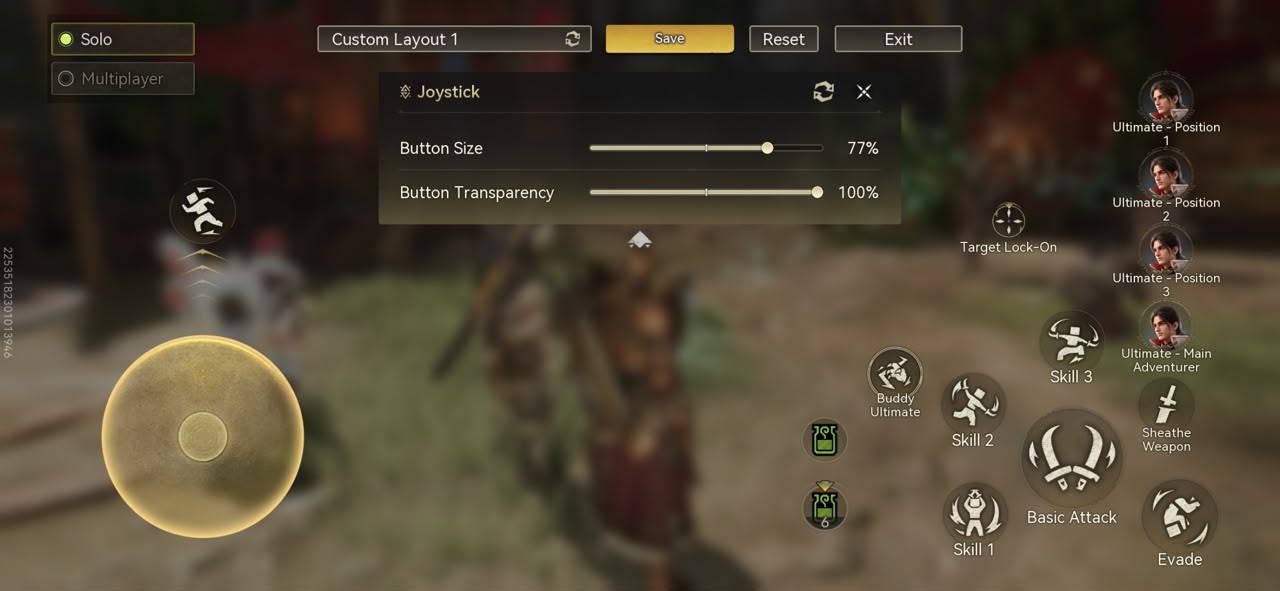
Beyond general control settings, Monster Hunter Outlanders offers a robust Custom Layout option, allowing players to individually adjust the size, position, and transparency of every on-screen button. This feature is invaluable for optimizing ergonomics and adapting to diverse hand sizes and grip styles (e.g., thumb players vs. "claw" grip players). The default layout, while functional, may not suit every individual’s comfort or tactical preference. Players are encouraged to enter the customization screen (typically accessed via a "Custom" button next to the mode selection) and meticulously arrange buttons to create a layout that feels natural and responsive. A well-designed custom layout can drastically improve reaction times and reduce hand fatigue during extended play sessions. Furthermore, the game thoughtfully provides separate custom layouts for Solo and Multiplayer modes. This distinction is critical, as tactical priorities and available actions can differ significantly between hunting alone and coordinating with a team. Players can, for instance, prioritize healing items and personal buffs in a solo layout, while a multiplayer layout might emphasize communication tools, support items, or specific team-oriented skills. This level of detail empowers players to fine-tune their interface for every conceivable hunting scenario.
Visual Fidelity vs. Performance: Graphics Optimization
Graphics settings represent a crucial balancing act between visual quality and device performance. While stunning visuals enhance immersion, they can also strain mobile hardware, leading to frame rate drops, input lag, overheating, and accelerated battery drain. Optimizing these settings is essential for a smooth and responsive gameplay experience.
- Balancing Aesthetics and Frame Rate
- Graphics Quality: Pick a setting that wouldn’t affect performance. This is the most impactful setting. High-end devices (e.g., recent flagship smartphones) may comfortably run on "High" or "Ultra," enjoying crisp textures and detailed environments. However, mid-range or older devices will benefit immensely from "Medium" or "Low" settings. The primary goal is to maintain a stable frame rate, as even minor stuttering can severely impair combat effectiveness. Experimentation is crucial here, aiming for the highest visual quality that does not compromise performance.
- Frame Rate (Field): Highest available setting.
- Frame Rate (Free Hunt/Arena): Highest available setting.
Maintaining the highest possible frame rate (ideally 60 frames per second, if supported by the device) is paramount for a fluid combat experience. Higher frame rates translate directly to smoother animations, more responsive controls, and a clearer perception of monster attack patterns, all of which are vital for dodging and counter-attacking. Even if it means reducing other graphical settings, prioritizing frame rate should be a top concern for competitive play.
- Strategic Performance Boosts
- Anti-Aliasing: Off. Anti-aliasing smooths out jagged edges on objects, making visuals appear cleaner. However, it is a resource-intensive process. On smaller mobile screens, the visual benefit of anti-aliasing is often less pronounced, and disabling it can provide a significant performance boost without a major impact on perceived visual quality, especially on devices struggling to maintain a stable frame rate.
- Player Display Limit: 5. In multiplayer hubs or crowded areas, limiting the number of displayed player models can reduce rendering load, improving performance. A limit of 5 typically provides enough visual context without overwhelming the device.
- Other Player’s Visual Effects: Normal. While flashy effects are appealing, setting them to "Normal" ensures that intense particle effects from other players’ attacks don’t cause performance dips, especially during chaotic multiplayer hunts.
Strategic Vision: Calibrating Your Camera
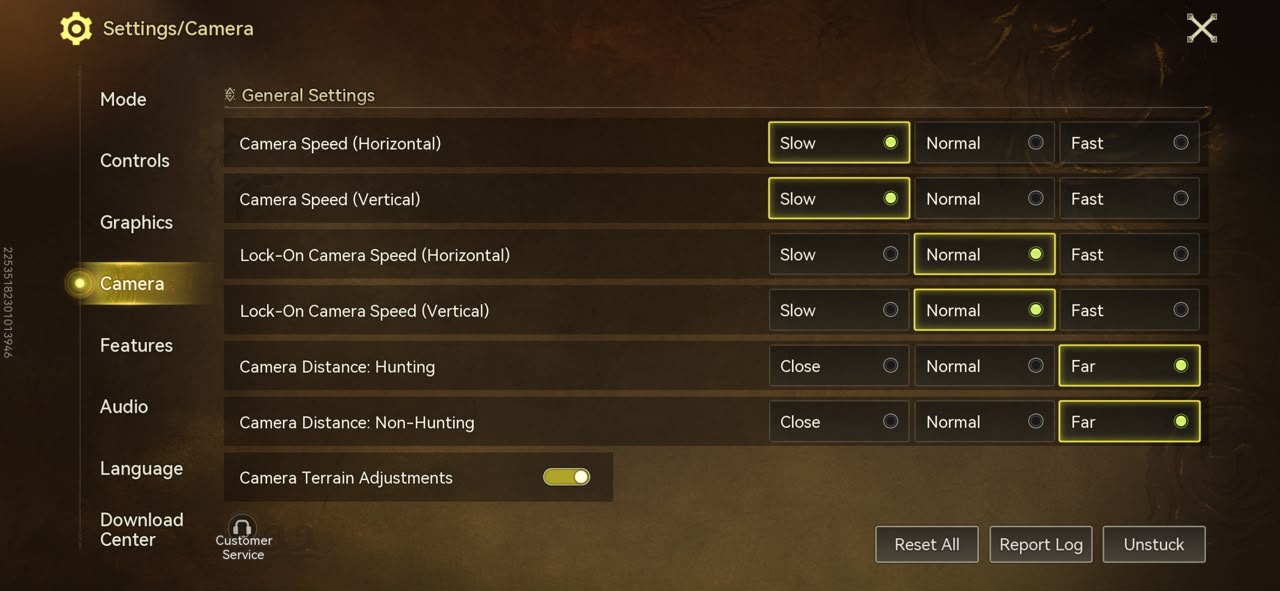
Camera settings dictate how players perceive the battlefield and navigate the environment, playing a critical role in situational awareness and targeting. An improperly configured camera can lead to disorientation or missed opportunities.
- Camera Speed (Horizontal/Vertical): Slow. For an action game requiring precise targeting and tracking of large, often erratic monsters, a "Slow" camera speed is generally recommended. This allows for controlled camera adjustments without overshooting, ensuring that the target remains within view and reducing the likelihood of disorienting spins.
- Lock-On Camera Speed (Horizontal/Vertical): Normal. When locked onto a monster, the camera’s primary function is to keep the target centered. A "Normal" speed for lock-on camera movement provides a responsive yet stable tracking experience, allowing the player to focus on combat rather than constantly wrestling with the camera.
- Camera Distance: Hunting: Far.
- Camera Distance: Non-Hunting: Far.
A "Far" camera distance offers a broader field of view, providing superior situational awareness during hunts. This wider perspective allows players to anticipate monster attacks, observe environmental hazards, and track other players’ positions more effectively. It also gives a better sense of the monster’s scale and movement patterns. - Camera Terrain Adjustments: On. This crucial setting ensures that the camera intelligently adjusts its position to avoid clipping through terrain or becoming obstructed by environmental elements, maintaining a clear view of the action at all times.
Enhancing Gameplay: Features and Quality of Life
The "Features" tab houses a variety of gameplay options that enhance convenience, provide critical combat information, and streamline interactions, contributing significantly to the overall quality of life during hunts.
- Streamlining the Hunt
- Enable Scoutflies: On. Scoutflies are an iconic Monster Hunter feature that guides players to objectives and highlights interactive elements. Keeping them on enhances navigation and resource gathering.
- Auto-Carve: On. Automating the carving process after a hunt reduces repetitive actions and ensures that players collect all available monster materials without manual input.
- Ultimate Side Portrait Pop-up: Off.
- Enable Exclusive Audio for SSR Adventurers: On. This adds an immersive layer for rare characters, enhancing the audio experience.
- Enable Main Adventurer Ultimate Close-Up: Off.
- Enable Squadmate Ultimate Close-up in Solo Mode: Off.
While ultimate close-ups and portrait pop-ups can be cinematic, they often interrupt the flow of combat. For optimal gameplay, especially in challenging hunts, disabling these can prevent visual distractions and maintain continuous situational awareness.
- Critical Combat Information
- Monster Attack Warnings: Enhancement. Clear and timely warnings for monster attacks are vital for successful evasion. "Enhancement" typically implies more prominent or noticeable warnings, giving players a better chance to react.
- Damage Number Opacity: 100. Displaying damage numbers at full opacity ensures that players receive immediate and unambiguous feedback on their attacks, helping them understand weapon effectiveness and identify weak points.
- Potion Recommendation Timing: Standard. This provides balanced recommendations for when to use healing items, preventing premature or delayed consumption.
- Show Monster Health: On.
- Monster HP Display Positions: Align Left.
Having a clear display of the monster’s health bar is crucial for strategic decision-making, allowing players to gauge progress and anticipate phases. Aligning it to a consistent position like the left ensures it’s easily trackable. - Show Skill Descriptions: On.
- Show Item Recommendation: On.
- Show Capture Recommendation: On.
These prompts provide valuable context and reminders, especially for new players or when encountering unfamiliar monsters. Knowing skill effects, recommended items, and when a monster is weak enough to be captured are all vital for efficient hunting. - Monster Status Prompts: On. Information on a monster’s status (e.g., poisoned, stunned, exhausted) is critical for exploiting vulnerabilities and planning attacks.
- Default Tracking on Map Travel: On.
- Exit Map After Tracking Target: On.
These settings streamline navigation, automatically tracking objectives and closing the map once a target is set, minimizing menu interaction. - Hide Radar in Combat: Off. The radar provides essential mini-map information and monster tracking. Keeping it visible during combat enhances spatial awareness.
- Immersive Mode: Off. While immersive mode might hide UI elements for a cleaner screen, it often comes at the cost of vital combat information. For competitive or serious play, having all necessary UI elements visible is preferred.
- Classic: Skill Prompts: On. In Classic Mode, where manual input is key, skill prompts can serve as helpful reminders or indicators for complex combos.
Developer Philosophy and Community Impact
The extensive range of customization options within Monster Hunter Outlanders reflects a deliberate design philosophy from Capcom and Level Infinite. This approach prioritizes player agency and accessibility, acknowledging that a one-size-fits-all solution is inadequate for a complex action RPG on mobile. Statements from developers, often inferred from game design choices, typically emphasize the desire to create a robust and enjoyable experience for a global audience, encompassing both long-time Monster Hunter fans and new mobile players. Community feedback, frequently gathered through beta tests and online forums, consistently highlights the importance of such granular control, particularly in a genre where precision and performance directly impact player satisfaction and competitive standing. Esports analysts and prominent mobile gaming personalities have also noted that the depth of settings customization will likely be a significant factor in the game’s competitive landscape, allowing top players to fine-tune their setups for marginal but crucial advantages.
The Broader Implications of Optimization
The meticulous optimization of settings in Monster Hunter Outlanders extends beyond individual player preference; it has broader implications for the game’s success and the mobile gaming ecosystem as a whole.
- Enhanced Accessibility: By offering modes like Adventure and Classic, alongside comprehensive control and visual adjustments, the game becomes accessible to a wider demographic. This inclusivity allows players of varying skill levels and mobile gaming backgrounds to engage with the core Monster Hunter experience.
- Competitive Edge: For aspiring high-rank hunters and those participating in potential competitive events, a perfectly calibrated setup can provide a measurable advantage. Faster reaction times, clearer visual cues, and ergonomic controls contribute to more consistent performance, allowing players to push the limits of their skill.
- Player Retention: A game that feels responsive, performs smoothly, and can be tailored to individual comfort is more likely to retain its player base. Frustration stemming from poor controls or performance often leads to player churn, making optimization a critical factor in long-term engagement.
- Future of Mobile Gaming: Monster Hunter Outlanders, with its console-grade depth and extensive customization, sets a new benchmark for what players can expect from mobile action RPGs. It demonstrates a commitment to delivering high-quality, nuanced experiences on handheld devices, pushing the boundaries of the mobile gaming landscape.
- Device Optimization Challenges: The sheer variety of mobile hardware presents an ongoing challenge for developers. Providing flexible graphics options allows the game to scale across a wide range of devices, from entry-level smartphones to high-end tablets, ensuring a playable experience for as many users as possible.
Conclusion: The Art of Personalized Hunting
Ultimately, the quest for the "best" settings in Monster Hunter Outlanders is not about rigidly adhering to a prescribed configuration. Instead, it is an iterative process of experimentation and personalization, guided by the recommendations outlined in this guide. The optimal setup is a harmonious blend of your device’s capabilities and your unique playstyle, ensuring that every hunt feels comfortable, responsive, and exhilarating. Players are strongly encouraged to use these recommendations as a robust starting point, then meticulously adjust each parameter, one by one, until they achieve a configuration that truly resonates with their individual preferences. As you delve deeper into the world of Monster Hunter Outlanders, continually refine your settings, adapting them as your skills evolve and your understanding of the game deepens. This dedication to personalization will undoubtedly enhance your journey, transforming you into a truly formidable and efficient hunter.