





Unlocking Extended iPhone Battery Life: A Comprehensive Guide to Maximizing Your Device’s Power

When a reliable charger is within reach at home or the office, iPhone battery concerns often fade into the background. However, for extended periods away from power sources, strategic adjustments become paramount to ensure your device keeps pace with your day. This in-depth guide explores ten essential strategies designed to significantly cut down on battery drain, drawing upon the latest advancements in iOS and hardware capabilities.

The Dawn of Adaptive Power: Intelligent Battery Management in iOS 26
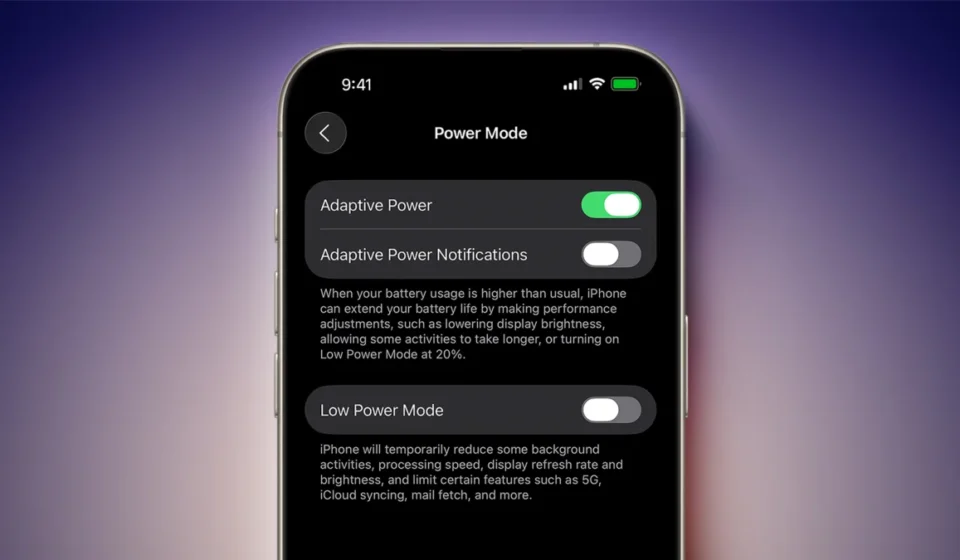
A cornerstone of modern battery preservation is the introduction of Adaptive Power, a sophisticated feature within iOS 26 designed for Apple Intelligence-enabled iPhones. This intelligent system leverages on-device analysis of user behavior patterns to proactively manage power consumption. By learning when users typically require peak performance and when power can be conserved, Adaptive Power aims to deliver a seamless user experience without the constant anxiety of a dwindling battery.
The system operates by subtly adjusting various device parameters. This includes dynamically lowering screen brightness when optimal, fine-tuning performance to match the demands of active applications, and intelligently limiting background processes that might otherwise consume significant power. A key feature of Adaptive Power is its automatic activation of Low Power Mode when the battery level dips to 20 percent, providing a critical buffer before a full charge is necessary.

For users of the iPhone 17 series, including the iPhone 17, iPhone 17 Pro, iPhone 17 Pro Max, and the iPhone Air, Adaptive Power is enabled by default. However, owners of other eligible iPhone models will need to manually activate this feature. The process is straightforward: navigate to Settings, then Battery, and finally select Power Mode to enable Adaptive Power. This proactive approach represents a significant leap forward in how iPhones manage their energy resources, moving from reactive user adjustments to intelligent, automated power optimization.
Automating Low Power Mode: A Proactive Approach to Energy Savings
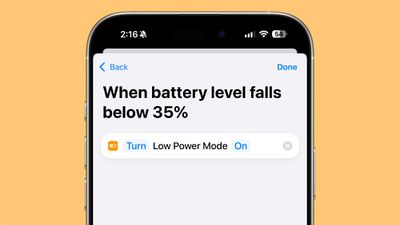
While the prompt to enable Low Power Mode at 20% battery is a helpful reminder, users can take a more proactive stance by automating this essential function. Low Power Mode is a universally recognized method for extending iPhone battery life, and its automation can prevent unexpected shutdowns during crucial moments.
With the introduction of iOS 27, setting up custom automations has become even more intuitive. Users can simply articulate their desired actions in natural language. For those operating on iOS 26, the process involves utilizing the Shortcuts app. The steps typically include creating a new Automation, searching for "Battery Level," specifying a target percentage (e.g., 30% or 40%), and then adding "Set Low Power Mode" as the action to be triggered when that battery threshold is reached. This ensures that the device enters a power-saving state well before critical levels are hit, providing a more consistent and reliable battery experience throughout the day.
The Impact of Always-On Display: Balancing Convenience and Power Consumption
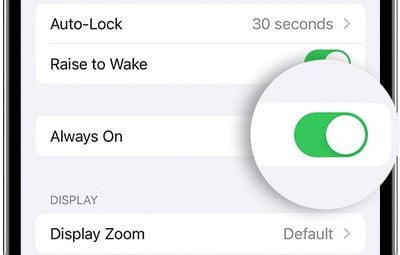
The Always-On Display feature, a convenience that keeps the time, wallpaper, widgets, and Live Activities visible on the Lock Screen even when the iPhone is locked, presents a trade-off between immediate information access and battery longevity. While Apple has implemented optimizations to mitigate its impact, such as dimming the display when the iPhone is in a pocket or when a paired Apple Watch is out of range, the Always-On Display inherently consumes more power than a completely inactive screen.
For users prioritizing maximum battery life, disabling the Always-On Display is a recommended step. This can be achieved through the following pathway: Settings > Display & Brightness > Always-On Display, and then toggling the feature off. It’s also worth noting that users can customize the Always-On Display experience without fully disabling it. Options to turn off wallpapers or selectively disable notifications can further reduce its power draw, offering a compromise between the convenience of glanceable information and battery conservation.
Optimizing Visuals: Limiting Frame Rate for Extended Usage
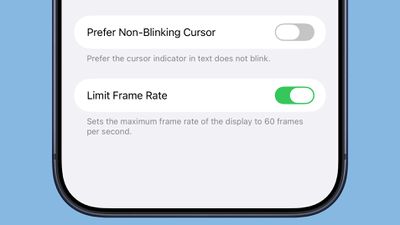
For iPhones equipped with the ProMotion display technology, which offers a variable refresh rate up to 120Hz, there’s an opportunity to conserve battery by reducing this rate. ProMotion enhances visual fluidity, particularly noticeable in scrolling and animations, but its higher refresh rates do contribute to increased power consumption.
By limiting the frame rate to 60Hz, users can achieve a noticeable improvement in battery life. This adjustment is accessible through the Accessibility settings. The pathway typically involves: Settings > Accessibility > Motion > Limit Frame Rate, and then enabling this option. ProMotion technology is available on a range of Apple devices, including all iPhone 17 models, the iPhone Air, and Pro variants of iPhones dating back to the iPhone 13 Pro. This setting provides a tangible benefit for users who may not require the absolute smoothest visual experience at all times.
Harnessing the Power of Dark Mode: A Visual Strategy for OLED Displays
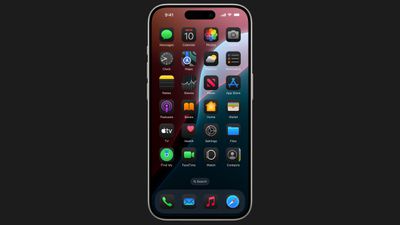
On iPhones with OLED displays, activating Dark Mode offers a significant advantage in battery conservation. OLED technology works by illuminating individual pixels, meaning that black pixels are effectively turned off, consuming no power. Consequently, when Dark Mode is enabled, a greater proportion of the screen displays black or dark colors, leading to a reduced overall power draw.
This benefit is particularly pronounced when using the iPhone outdoors on a sunny day. Even with higher brightness levels in Light Mode, the energy expenditure can be comparable to or even exceed that of Dark Mode with a lower brightness setting. While the battery-saving impact of Dark Mode may be less dramatic in dimly lit environments where screen brightness is already reduced, it still contributes to a marginal decrease in power consumption. Users can easily toggle Dark Mode through the Control Center or within Settings > Display & Brightness.
Prudent App Permissions: Auditing Location Access for Battery Efficiency
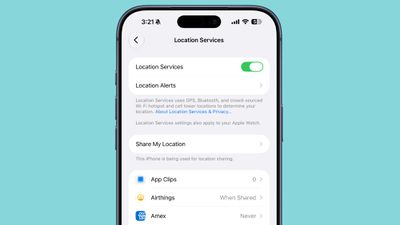
Regularly reviewing app permissions, especially those related to location access, is crucial for both privacy and battery management. Many applications request access to location data for functionalities that are not always essential, leading to unnecessary battery drain.
The iPhone offers granular control over location services, allowing users to select from several options for each app: Never, Ask Next Time Or When I Share, While Using the App, and Always.
- Never: This setting completely prevents an app from accessing your location. It is the most battery-efficient option and recommended for apps that have no justifiable need for location data.
- Ask Next Time Or When I Share: This option prompts the app to request your permission each time it needs your location, allowing for temporary access.
- While Using the App: Location access is granted only when the app is open and actively being used. Once the app is closed or switched to the background, location access ceases.
- Always: This setting allows the app to access your location at any time, regardless of whether it is open or in the background. This setting contributes the most to battery drain and should be reserved for applications where continuous location tracking is genuinely necessary, such as navigation apps.
It’s common for apps like banking or social media platforms to request location access for features like locating nearby ATMs or providing location-based services. By carefully auditing these permissions and setting them to "Never" or "While Using the App" for non-essential applications, users can significantly reduce background battery consumption. While disabling Location Services entirely is an option, it is generally not advisable as it can impair the functionality of critical services like Maps.
Streamlining Background Activity: Reinining Background App Refresh
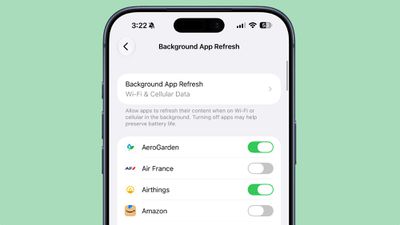
Background App Refresh is a feature that allows applications to update their content even when they are not actively open. While this enhances user experience by ensuring fresh data upon opening an app, it can be a substantial contributor to battery drain.
Users can manage this feature by either disabling Background App Refresh entirely or by selectively choosing which apps are permitted to refresh in the background. The setting can be found under Settings > General > Background App Refresh. Here, users can opt to turn it off completely, allow it only when connected to Wi-Fi (which consumes less power than cellular data), or individually disable it for specific applications. Prioritizing background refresh for essential apps like email or messaging services, while disabling it for less critical ones, can lead to considerable battery savings.
Managing Interruptions: Limiting Live Activities and Notifications
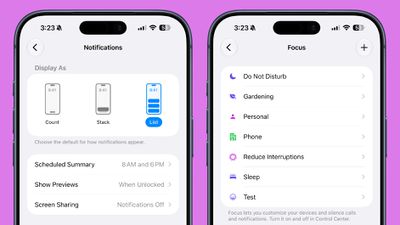
Incoming notifications and Live Activities, which continuously update the Lock Screen, can significantly impact battery life by waking the device’s display. By limiting the number of apps that can send these alerts, users can reduce this power drain.
Within Settings > Notifications, users can review the list of apps and disable notifications for those that are not essential. Furthermore, Focus modes offer a more sophisticated way to manage notifications. Focus modes allow users to define specific sets of apps and contacts that can send notifications during different times or activities, such as work hours, personal time, driving, or sleep. While Focus modes primarily manage when notifications are received, disabling unwanted notifications at the source remains the most effective method for battery conservation. Additionally, the Scheduled Summary feature allows non-urgent alerts to be batched and delivered at a user-defined time, further minimizing screen wake-ups.
Tactile Feedback: The Battery Cost of Keyboard Haptics
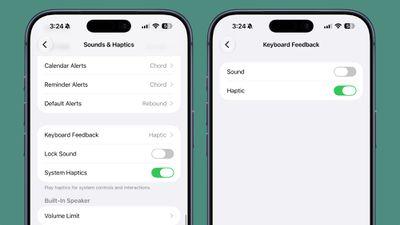
The subtle haptic feedback provided by the iPhone’s keyboard when tapping on keys can enhance the typing experience for many users. However, this tactile feedback relies on the Taptic Engine, a component that consumes a small but measurable amount of battery power with each activation.
For users aiming to maximize battery life, disabling keyboard haptics is a straightforward adjustment. This can be done by navigating to Settings > Sounds & Haptics > Keyboard Feedback and toggling off the "Haptic" option. While the individual impact of this setting might seem minor, cumulative savings across millions of keystrokes can contribute to overall battery longevity.
The Power of Insight: Monitoring Battery Usage and Adapting Strategies
iOS 26 has introduced significant enhancements to the Battery interface, making it more transparent and actionable for users. At the top of the Battery screen, users can find an overview of their current battery level and the time of their last charge. If the iPhone is actively charging, this section also provides an estimated time until the battery is fully charged.
A key feature is the weekly view of average battery usage, which allows users to compare their current consumption against their typical patterns. This comparison highlights whether the device is using more, less, or the same amount of battery life as usual. The interface also provides insights into why an app might be consuming more battery, often citing reasons such as background app refresh or an excessive number of notifications.
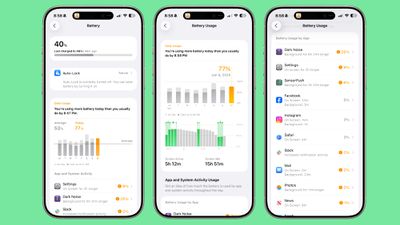
Apps that are particularly draining the battery are visually highlighted in orange, drawing the user’s attention to areas where adjustments can be made. By regularly consulting this battery usage data, users can identify the primary culprits behind rapid battery depletion and implement the relevant strategies outlined in this guide to optimize their iPhone’s power efficiency. This data-driven approach empowers users to make informed decisions about their device settings, ensuring a longer-lasting battery throughout the day.